|
Adds an IDEMIA device to FIPSlink.
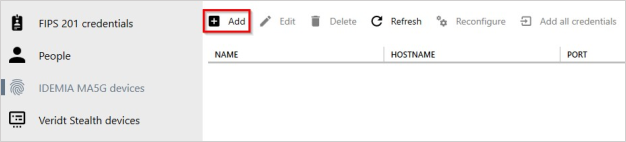
Click the add button to launch the device add wizard.
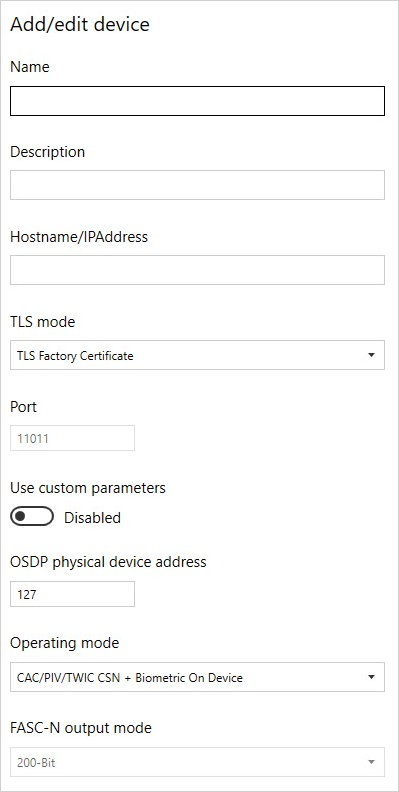
Name
The name field is a free text field that is used to reference the device throughout FIPSlink.
Description (optional)
Description is optional and can be used to provide additional context about the device.
Hostname / IP Address
Enter the hostname or IP address that the device is configured with. FIPSlink uses this address to communicate with the device over the network.
TLS mode
Two options are available under the TLS mode drop-down box: TLS Factory Certificate; None
TLS factory certificate
Select this option if you would like to to use the TLS encrypted communication using the IDEMIA factory default certificate. IDEMIA ships the devices with this certificate pre-installed. This is also known as IDEMIA Enforced Security. Minimum firmware versions for this feature:
1.MorphoWave Compact: from firmware 2.9 and up.
2.VisionPass: from firmware 2.9 and up.
3.Sigma series: from firmware 4.12 and up.
The TLS factory certificate mode can only be used with port 11011. The port field will be disabled and set to 11011 when this mode is selected.
None
Select this option if you would like to use plain text network communication (non-TLS / not encrypted). With "none" selected, the port field will be enabled and the operator can specify the port to use for the communication with the device.
Port
This field is only enabled when TLS mode set to "none". The operator needs to specify the port to use for the communication with the device. This value needs to match the device configuration. The default value for non-TLS mode is 11010.
Use custom parameters
Enable this toggle when you need to custom parameters. The custom parameters are read from a configuration file placed in the FIPSLink server directory. This is an advanced option and will require assistance from FIPSlink support team. Please do not enable this option unless instructed to do so by the FIPSlink support team.
Default = Disabled
OSDP physical device address
The OSDP device address is used for systems using OSDP communication between the IDEMIA device and the access control panel. This value will be written to the device during the "reconfigure" operation.
Additional configuration is needed when using OSDP. The device physical address will be used in conjunction with a custom parameters file. Please contact the FIPSlink support team if you are interested in using OSDP.
Allowed values = 1 - 127
Default value = 127
Operating mode
CAC/PIV/TWIC CSN + Biometric on device
Downloads the card serial number and the enrolled biometric to the IDEMIA device. When a card is presented to the device, the CSN will be looked up in the device's internal database. If the the CSN is found, the card holder will be prompted to present their enrolled biometric for verification.
The wiegand output is sent after a successful biometric verification.
CAC/PIV/TWIC CSN only
Downloads the card serial number to the IDEMIA device. When a card is presented to the device, the CSN will be looked up in the device's internal database. If the the CSN is found, access is granted and the wiegand output is sent to the access control panel.
CAC/PIV/TWIC FASC-N + Biometric on device
Downloads the FASC-N and the enrolled biometric to the IDEMIA device. When a card is presented to the device, the FASC-N will be looked up in the device's internal database. If the the FASC-N is found, the card holder will be prompted to present their enrolled biometric for verification.
The wiegand output is sent after a successful biometric verification.
Use in conjunction with FASCN-N output mode.
This option is only supported on MorphoWave Compact and VisionPass.
CAC/PIV/TWIC FASC-N only
Downloads the FASC-N to the IDEMIA device. When a card is presented to the device, the FASC-N will be looked up in the device's internal database. If the the FASC-N is found, access is granted and the wiegand output is sent to the access control panel.
Use in conjunction with FASCN-N output mode.
This option is only supported on MorphoWave Compact and VisionPass.
Commercial card + Biometric on device
Downloads the commercial card ID and the enrolled biometric to the IDEMIA device. When a card is presented to the device, the ID will be looked up in the device's internal database. If the the ID is found, the card holder will be prompted to present their enrolled biometric for verification.
The wiegand output is sent after a successful biometric verification.
Commercial card only
Downloads the commercial card ID to the IDEMIA device. When a card is presented to the device, the ID will be looked up in the device's internal database. If the the ID is found, access is granted and the wiegand output is sent to the access control panel.
TWIC Mode 1 (Signed CHUID)
No records are stored on the IDEMIA device. The device reads the TWIC CHUID from the card, asks the FIPSlink server to verify the CHUID, and check TWIC compliance. If the card is valid, the FIPSlink server will instruct the device to send a wiegand output to the access control panel.
Use in conjunction with FASCN-N output mode.
This option is only supported on Sigma series device with the TWIC firmware (XML-RPC / BATS firmware and license)
TWIC Mode 2 (Active card authentication)
No records are stored on the IDEMIA device. The device reads the Card Authentication Key (CAK) from the card, asks the FIPSlink server to verify the CAK, and check TWIC compliance. The server will verify card authenticity with a cryptographic challenge. If the card is valid, the FIPSlink server will instruct the device to send a wiegand output to the access control panel.
Use in conjunction with FASCN-N output mode.
This option is only supported on Sigma series device with the TWIC firmware (XML-RPC / BATS firmware and license)
TWIC Mode 3 (Signed CHUID + Biometric)
No records are stored on the IDEMIA device. The device reads the TWIC CHUID from the card, asks the FIPSlink server to verify the CHUID, and check TWIC compliance. If the card is valid, the card holder will be prompted to present their TWIC biometric. Once the biometric is verified, the FIPSlink server will instruct the device to send a wiegand output to the access control panel.
Use in conjunction with FASCN-N output mode.
This option is only supported on Sigma series device with the TWIC firmware (XML-RPC / BATS firmware and license)
TWIC Mode 4 (Active card authentication + Biometric)
No records are stored on the IDEMIA device. The device reads the Card Authentication Key (CAK) from the card, asks the FIPSlink server to verify the CAK, and check TWIC compliance. The server will verify card authenticity with a cryptographic challenge. If the card is valid, the card holder will be prompted to present their TWIC biometric. Once the biometric is verified, the FIPSlink server will instruct the device to send a wiegand output to the access control panel.
Use in conjunction with FASCN-N output mode.
This option is only supported on Sigma series device with the TWIC firmware (XML-RPC / BATS firmware and license)
FASC-N output mode
The output wiegand format for FASC-N's. This setting only applies the following Operating modes:
1.CAC/PIV/TWIC FASC-N + Biometric on device
2.CAC/PIV/TWIC FASC-N only
3.TWIC Mode 1
4.TWIC Mode 2
5.TWIC Mode 3
6.TWIC Mode 4
200-bit
Outputs the FASC-N in 200-bit wiegand format.
75-bit
Outputs the FASC-N in 75-bit wiegand format.
|

